
Set up BA Popup Upsell
Install the app, build a targeted popup and test it on your storefront without writing code. Follow the steps below, then use the troubleshooting list if anything does not look right.
Install BA Popup Upsell from the Shopify App Store
Open BA Popup Upsell on the Shopify App Store and click Install. Shopify will ask you to approve the app's permissions. Approve them and the app opens inside your Shopify admin. Your 14 day free trial starts when you approve the plan.
The app is designed to work with Shopify themes without custom code. Test the popup on your live theme before sending traffic to it.
Create your first popup
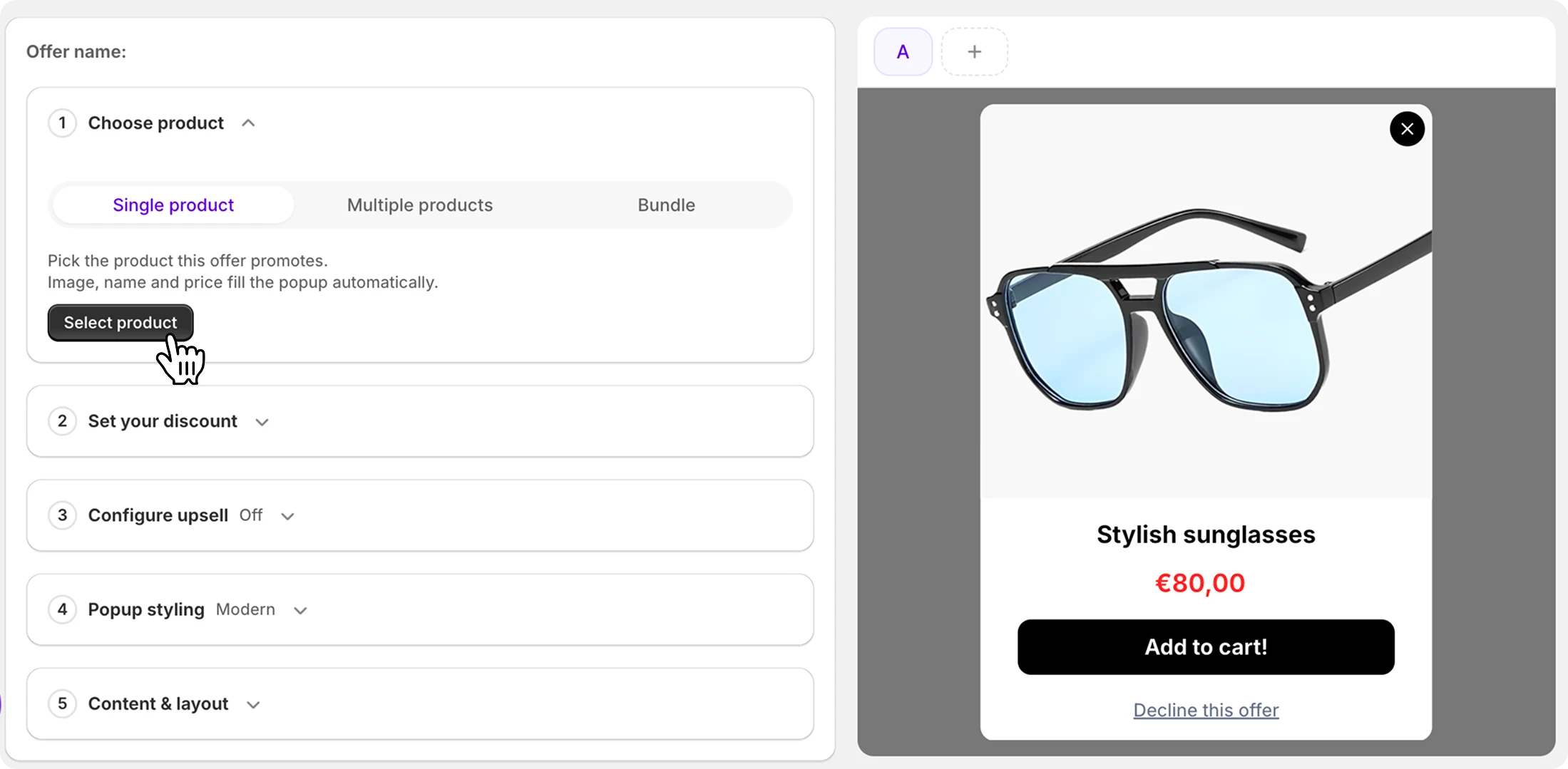
First, enable it in your theme settings by following the onboarding. Then, from the app dashboard, click Create popup and pick what you want it to do: a single-product upsell, a multi-product cross-sell, or a free-gift offer. You can run several popups side by side later, but start with the one offer you most want customers to see.
Choose settings and triggers
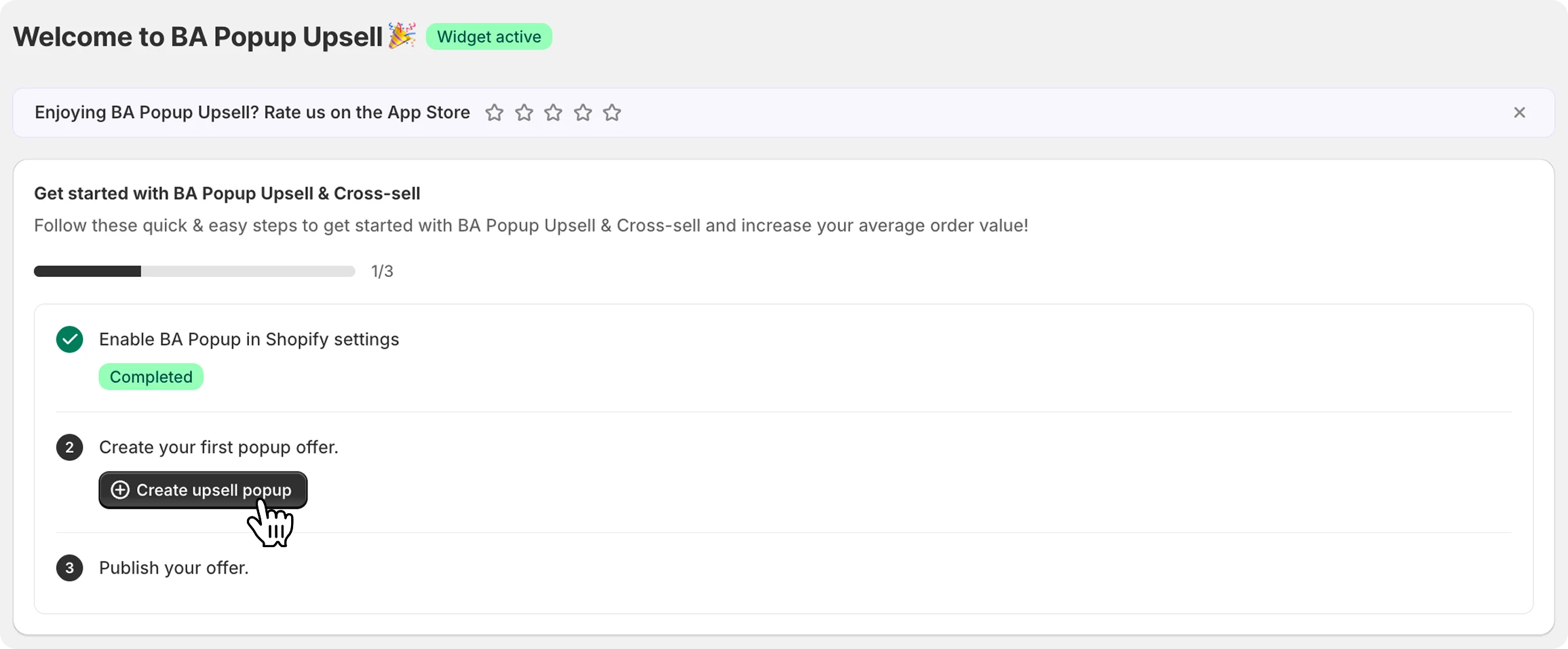
Open the popup settings and decide how it behaves. Pick the trigger products the offer promotes, then choose the actions that fire the popup: add to cart, exit intent, time on page, scroll depth, or cart value. Set visibility rules for which pages and devices it shows on, plus the frequency each visitor can see it.
Design it in the visual editor
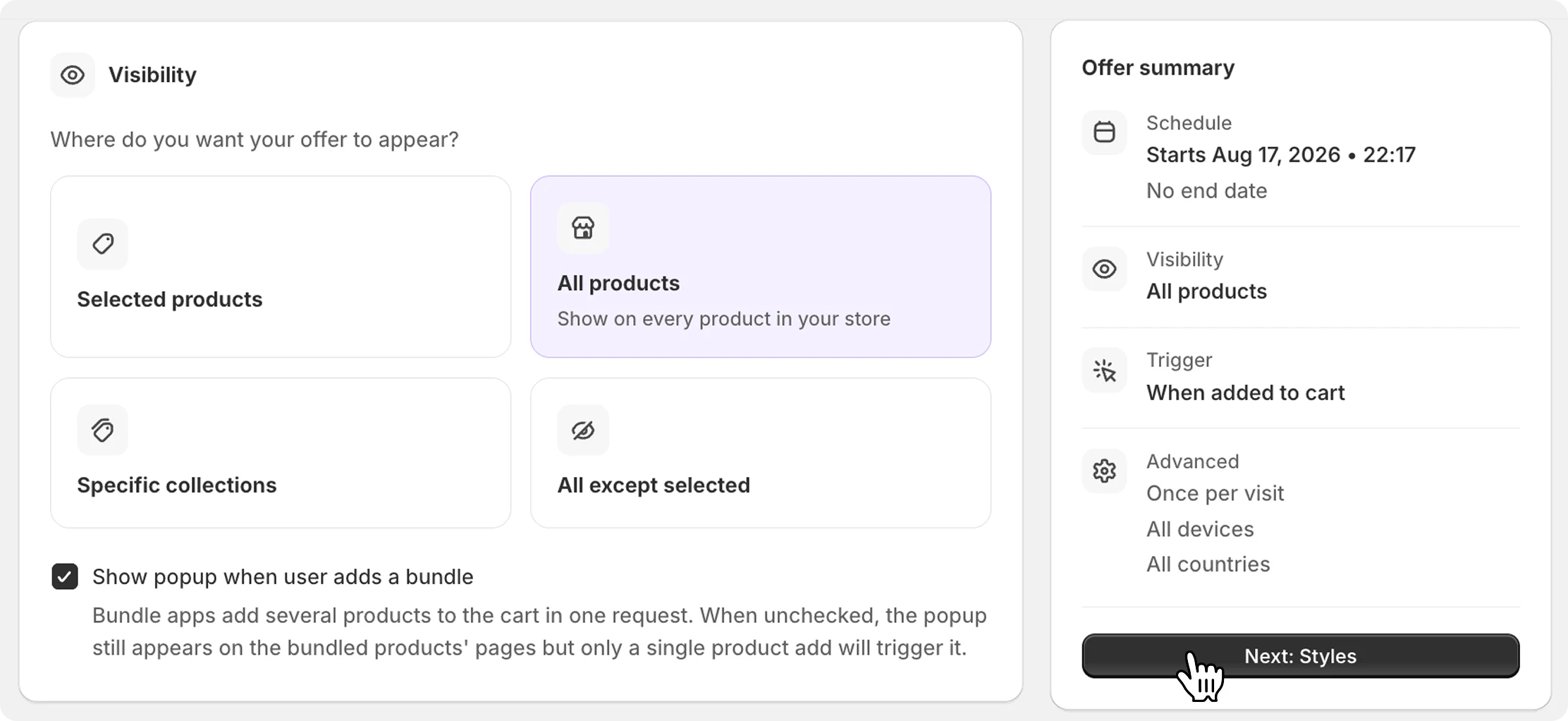
In the visual editor, choose the product, pick a template, and set your discounts and combinations. Then change the fonts, colors, and spacing to match your brand perfectly. No code required, and power users can go further with custom HTML and CSS.
Publish and test it
Set the popup live, then open your storefront in a private/incognito window and trigger it yourself: browse to the targeted page, move the cursor out of the window for exit intent, or add to cart. Check that the design, offer, and discount all behave the way you expect.
Test in incognito: frequency capping remembers that you've already seen the popup in your normal browser session.
Watch the analytics (and A/B test)
The dashboard shows views, clicks, conversions, and the revenue each popup generates. Once you have traffic flowing, run an A/B test on your headline or offer. Small changes there routinely move the numbers most.
Quick troubleshooting
The fastest fixes for the things merchants run into most. Still stuck? Support is 24/7.
Check three things in order: the popup is set live (not draft), its trigger and page/device targeting actually match the page you're testing, and you're testing in an incognito window, since frequency capping hides popups you've already been shown.
Open the popup's offer settings and confirm the discount is attached and active. If it applies but disappears, check your other Shopify discounts, because Shopify only combines discounts that are set as combinable.
Adjust the frequency settings on the popup: how many times a visitor can see it and how long before it can reappear.
Everything is editable in the drag-and-drop editor: fonts, colors, spacing, imagery. For pixel-perfect control, add your own CSS in the custom code section.
Message our 24/7 support from inside the app. We answer fast and regularly customise features to fit specific stores.